How to disable or enable Windows Defender in Windows 8.1
Windows Defender is an antivirus software which provides 'baseline
protection' according to Microsoft and ships with Windows 8 and Windows
8.1. Since Windows 8, Windows Defender is the same application as
Microsoft Security Essentials, which exists as a separate download for
Windows 7, Vista and XP.
While Windows Defender provides very baseline protection, it slows down your PC considerably. I have done benchmarks with it enabled and then disabled and concluded that the filter driver it installs on the system slows down disk I/O noticeably. Every time, I download some small file from the Internet, it also makes my browser hang. If you are not happy with Windows Defender and would like to turn it off, follow this simple tutorial.
To disable Windows Defender, you need to open its main window. This can be done quickly by searching from the Start screen.
Open the Start screen and type the following:
win def
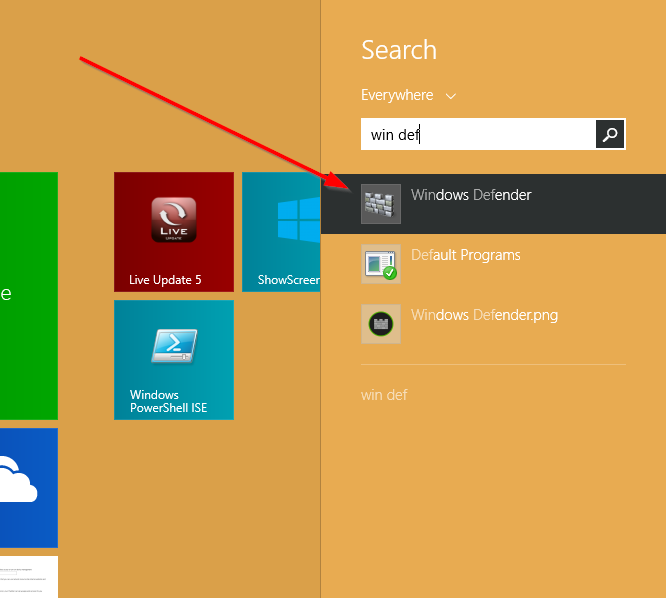
Windows Defender will appear as the first result in the search:
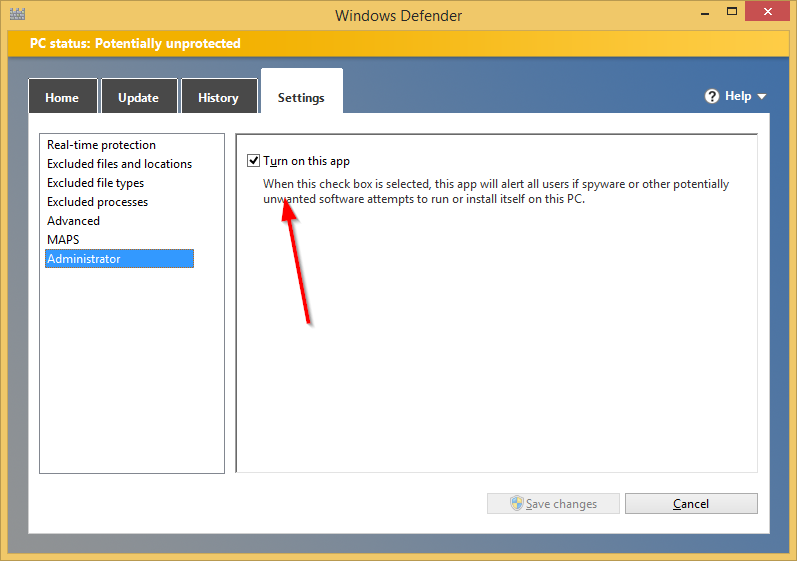
 Run it and switch to the Settings tab. In the left pane, you will see the 'Administrator' item. Click it.
Now, in the right pane you will see the 'Turn on this app' checkbox. Untick it to disable Windows Defender.

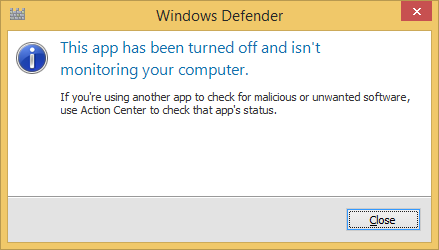
Click the 'Save changes' button to confirm the changes you made. You will get the appropriate message:
 That's it. Windows Defender will be disabled.
To enable it back, you can use the Action Center applet from the classic Control panel.
Open the Control panel and navigate to Control Panel\System and Security\Action Center.
In the right pane you will see the message that Windows Defender is turned off.
 Click the 'Turn on now' button to enable Windows Defender again.
While Windows Defender provides very baseline protection, it slows down your PC considerably. I have done benchmarks with it enabled and then disabled and concluded that the filter driver it installs on the system slows down disk I/O noticeably. Every time, I download some small file from the Internet, it also makes my browser hang. If you are not happy with Windows Defender and would like to turn it off, follow this simple tutorial.
To disable Windows Defender, you need to open its main window. This can be done quickly by searching from the Start screen.
Open the Start screen and type the following:
win def
Windows Defender will appear as the first result in the search:
 Run it and switch to the Settings tab. In the left pane, you will see the 'Administrator' item. Click it.
Now, in the right pane you will see the 'Turn on this app' checkbox. Untick it to disable Windows Defender.
Click the 'Save changes' button to confirm the changes you made. You will get the appropriate message:
 That's it. Windows Defender will be disabled.
To enable it back, you can use the Action Center applet from the classic Control panel.
Open the Control panel and navigate to Control Panel\System and Security\Action Center.
In the right pane you will see the message that Windows Defender is turned off.
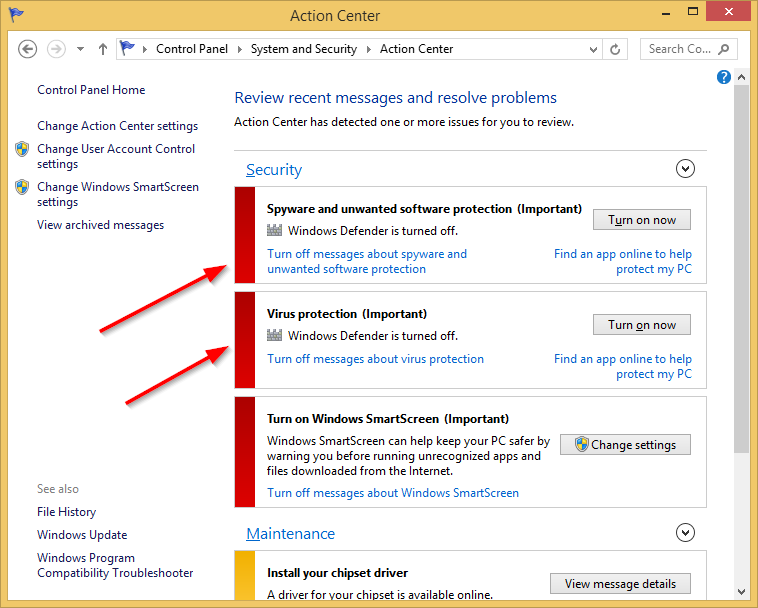 Click the 'Turn on now' button to enable Windows Defender again.
Mohon memberikan donasi gratis demi pengembangan donasi ini, dan dapatkan juga $2
setelah anda registrasi, silakan klik Donasi
No comments:
Post a Comment